Executing at Scale · 12 of 17
Saving Your Work: Git in Plain English
What Git is, why it matters, and how Claude Code can save your work for you without any command-line know-how.
Git is a save-history for your project. It is the standard tool the software world uses to keep track of changes over time, but you do not need to think of it that way. Think of it as a running record of your work, where each entry is a snapshot of your files at a single point in time, along with a short note that describes what changed. That is really all it is, and you do not need to understand the machinery underneath to get the benefit of it.
It helps in three plain ways. It keeps a record, so you can always see what changed and when. It gives you a safety net, so a bad edit is never permanent. And it lets you share, so a colleague can pick up an exact copy of your work when the time comes. For now, the record and the safety net are the parts that matter most.
Each snapshot is called a “commit”. A commit captures how everything looked the moment you saved it, so you always have a clear trail of what happened and when. If a later change goes wrong, you can look back at an earlier commit to see what the files used to contain, and return to that version if you need to.
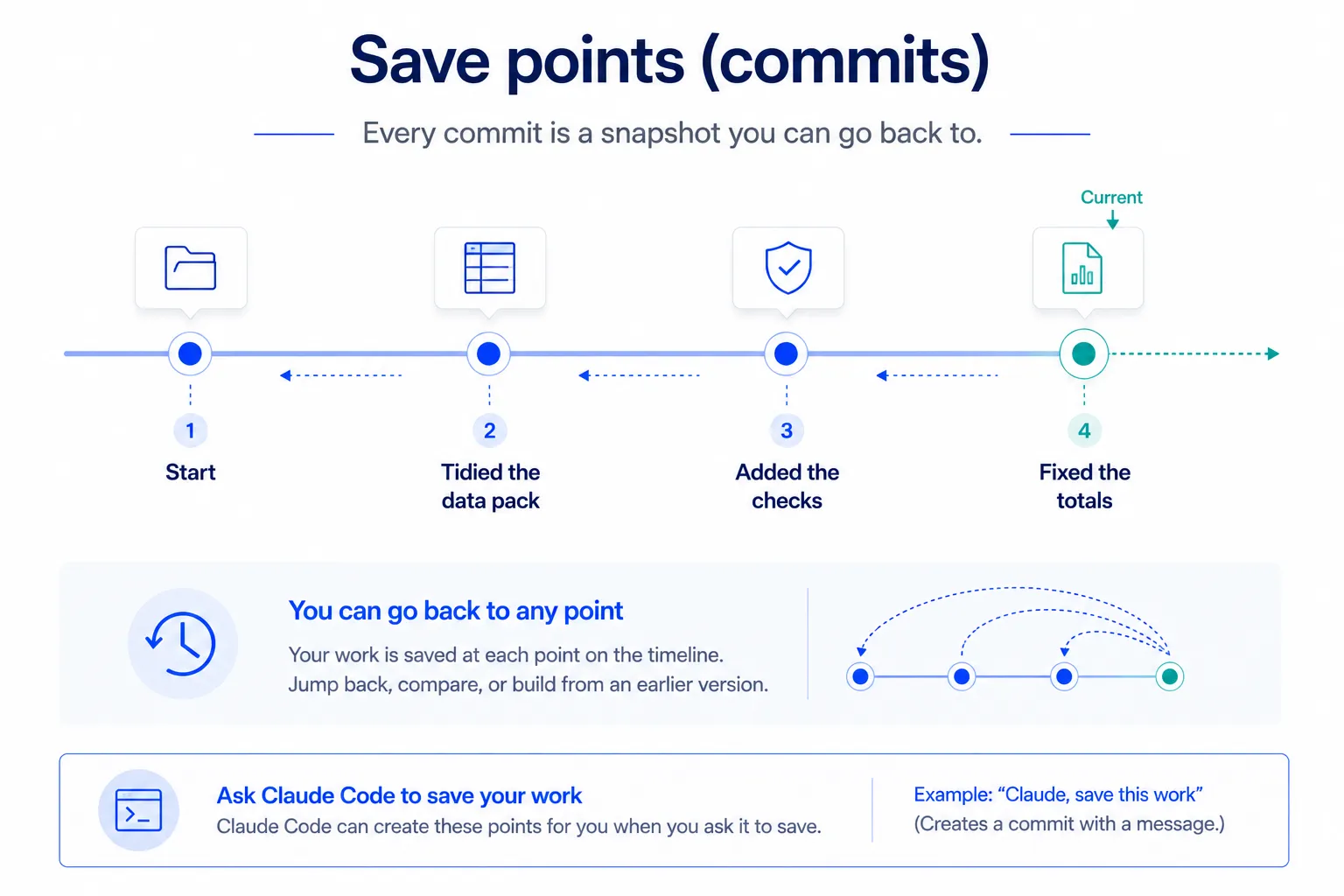
Why this matters for your work
Imagine you are building a small analysis or a simple internal tool over several sessions. Without a save-history, one bad edit could quietly overwrite good work, and you would have no easy way to recover it. With commits in place, every meaningful step is preserved. You can experiment freely, knowing that a clean version is always sitting safely behind you.
The two things a commit gives you are worth stating plainly. First, a clear record: you can see exactly what changed between one point and the next. Second, a safety net: if something breaks, you can go back to a version that worked.
Setting Git up the first time
Before you can save your first point, two small things need to be true. Git has to be installed on your machine, and your project folder has to be turned into a Git project. A Git project is called a “repository”, often shortened to “repo”. Both are one-time steps, and the easiest way to do them is to ask Claude Code.
Open your project folder in VS Code (or navigate to it in your terminal), and ask Claude Code to set Git up for you.
Please set up Git for this folder so I can start saving my work. If Git needs any details from me, such as my name or email, ask me first.
Behind the scenes, Claude Code checks that Git is installed, turns the folder into a repository, and records the name and email that will be stamped on your save points. You do not need to type any of this yourself, but it helps to know that “setting up Git” is just a few one-time lines, not a mountain of configuration. Here is what Claude Code runs for you:
git --version                          # check Git is installed
git init                               # turn this folder into a repository
git config user.name  "Your Name"      # the name on your save points
git config user.email "[email protected]"   # your work email
After this, the folder is ready and every save point you make from now on is recorded here.
Keeping sensitive files out: .gitignore
A .gitignore is a short list of files and folders that Git must ignore. Anything named in it is never saved into your history and never pushed anywhere. You write it once, and from then on Git simply pretends those files are not there when it saves your work.
Once a file is committed it becomes part of the record, and if that record is later pushed to a service like GitHub, the file travels with it. A .gitignore stops files such as deal models, data-room exports, and secrets from ever entering the history in the first place.
Here is a simple example. Each comment sits on its own line, because in a .gitignore a # only starts a comment at the beginning of a line, not partway through one.
# Secrets and credentials
.env

# Deal data and exports (keep these local)
/data/
*.xlsx
*.pdf

# System clutter
.DS_Store
You do not have to write this by hand. As with the rest of Git, you can ask Claude Code to set it up and explain each line.
Please add a .gitignore to this folder that keeps data exports, spreadsheets, PDFs, and any secrets out of Git. Ask me before ignoring anything you are unsure about.
How Claude Code helps
The good news is that you do not have to learn any of the underlying steps yourself. You can simply ask Claude Code to save your work, and it will handle the details for you. A request as plain as “save my work with a short message describing what I changed” is enough. Claude Code takes care of creating the commit and writing the note.
Please save my work with a short, clear message that describes what changed in this session.
When you come back later and want to review your history, you can ask in equally plain terms, for example “show me a list of the recent save points and what each one changed”. Claude Code will lay it out for you in readable form. There is no need to memorize commands.
The habit worth keeping
The single habit worth building is to save often, in small steps, with a short note each time. Save after you finish something that works, before you try something risky, and at the end of a session. Small, frequent save points are far easier to work with than one giant save at the very end, because each one tells a clear story about a single change. Claude Code will do the work; you just have to remember to ask.